

Last updated: May 23, 2026
Privacy, mistakes, the settings that actually matter, and what should never go into a chat box. Honest answers for someone using AI to build something online.
Quick answer: ChatGPT is safe for most of the work an online builder does with it. Research, content drafts, outline writing, summarizing what competitors are doing, helping you think through an idea. None of that puts you at risk.
What puts you at risk is forgetting that everything you type ends up on OpenAI’s servers, and that on a personal Free, Plus, or Pro account, the default setting feeds your conversations into model training. You did not see that on the signup screen because it was not there. It is tucked into a settings menu where most people never look.
If you are using AI to build something online, the gap between what you assume is private and what actually is matters more than it would for someone asking ChatGPT for dinner ideas. Your business research, your draft content, your niche thinking, your eventual subscriber strategy. None of that needs to walk into a training set just because you missed a toggle.ou need to treat it the same way you would treat any online service. You would not paste your credit card number into a Facebook comment. Apply the same thinking here.
Quick Navigation
What Actually Happens When You Type Something
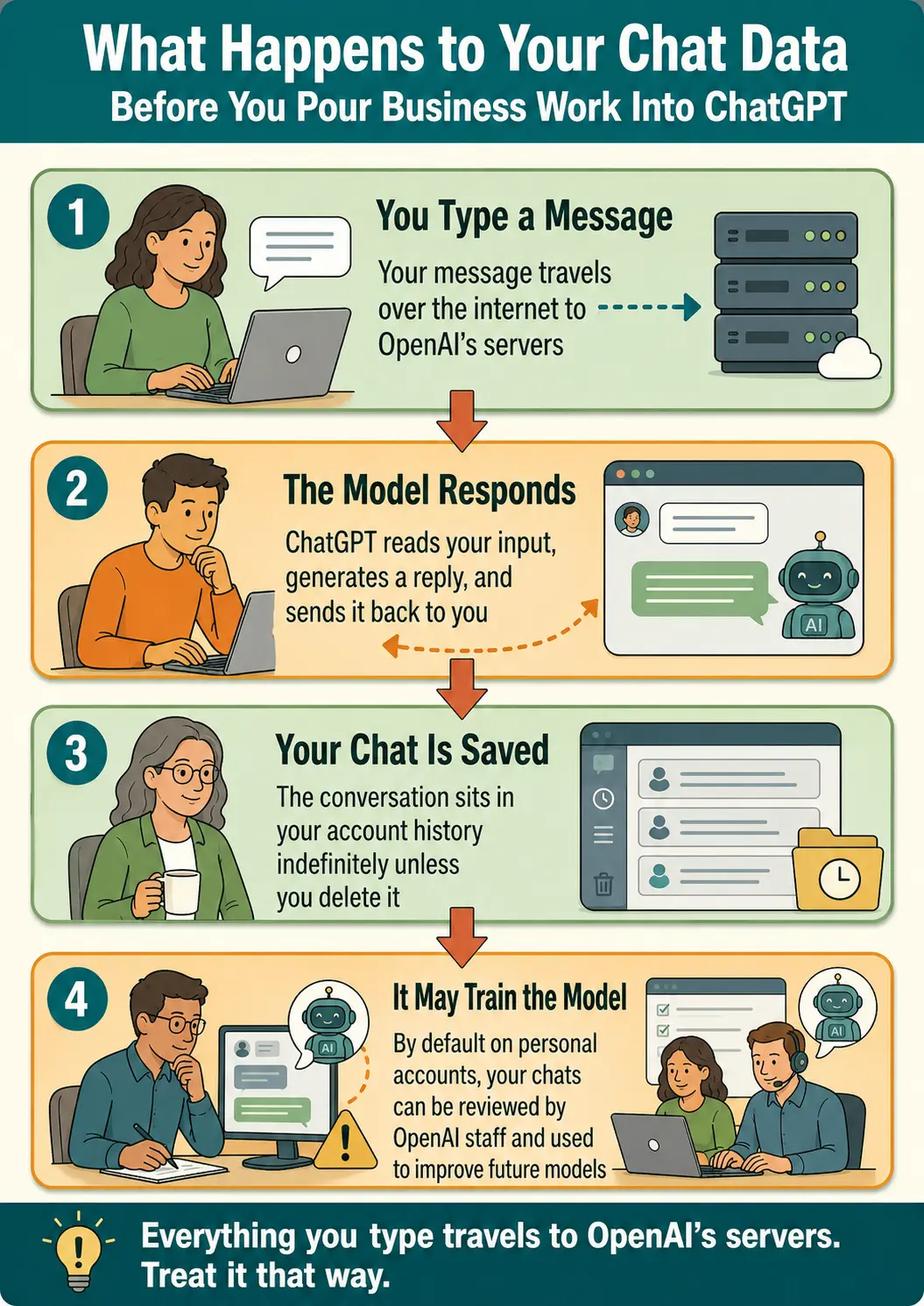
Every message you send to ChatGPT travels over the internet to OpenAI’s servers. The model reads it, generates a response, and sends it back. Your conversation is saved in your account history unless you delete it or use a temporary chat.
On Free, Plus, and Pro personal accounts, your conversations are stored indefinitely until you delete them. By default, OpenAI can use those conversations to improve their AI models. In practice, that means real people at OpenAI, or contractors they hire, may review some conversations for quality and safety reasons.
Your conversations are encrypted while they travel and while they sit on OpenAI’s servers, using the same standards banks use. OpenAI says they do not sell your data to third parties. That is not the same as saying nobody reads it. If you leave the defaults on, your chats are part of the training pool and part of the safety review pool.
Free, Plus, Team, Enterprise: What Actually Matters for a Solo Builder
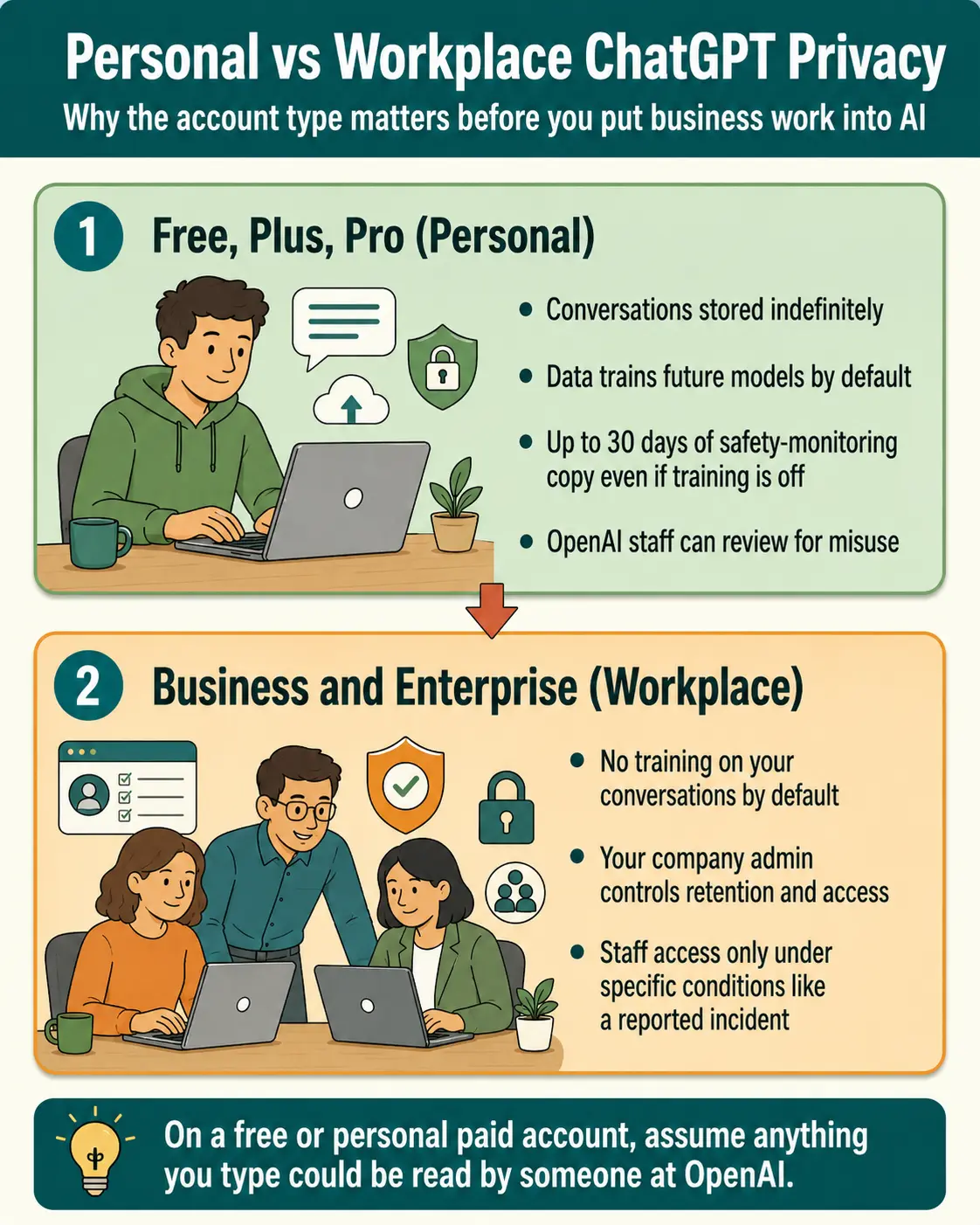
Most builders run ChatGPT on a personal account. Free or Plus. A smaller group ends up on Team or Enterprise. The privacy rules differ in ways that matter.
Free and Plus/Pro accounts (personal use)
These are the accounts most people use. Your conversations are stored indefinitely. By default, your data is used to train future AI models. You can turn this off in your settings (explained below). Even if you turn off training, OpenAI still keeps a copy of your chats for up to 30 days for safety monitoring. Authorized OpenAI staff can review conversations to check for misuse.
Business and Enterprise accounts (workplace use)
If your employer gives you access to ChatGPT through a company account, the privacy rules are stricter. OpenAI does not use business conversations to train models by default. Your company’s administrator controls data retention and access. OpenAI staff can only access conversations under very specific conditions, such as investigating a reported incident or a legal requirement. If you use ChatGPT at work, ask your employer whether you are on a business plan or a personal account. The difference is significant.
The bottom line: If you are using a free or personal paid account, assume that anything you type could be seen by someone at OpenAI. That is not a reason to panic. It is a reason to be thoughtful about what you share.
The Never Share List
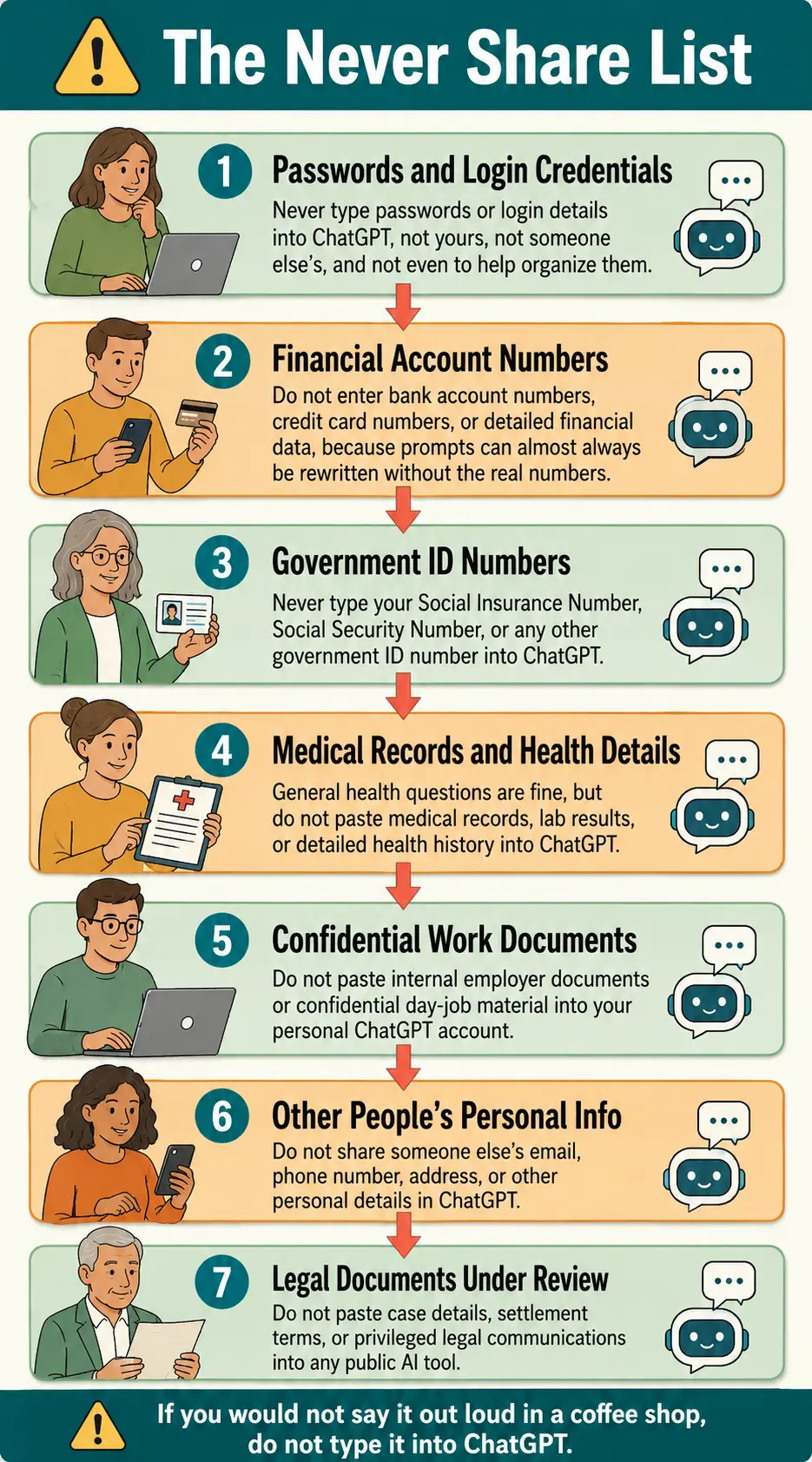
Regardless of which account type you are on, do not type any of the following into ChatGPT.
- Passwords or login credentials. Not yours, not anyone else’s. Not even if you are asking ChatGPT to help you organize them.
- Bank account numbers, credit card numbers, or financial details. ChatGPT does not need them. If a prompt seems to require them, rephrase the question without the actual numbers.
- Your Social Insurance Number, Social Security Number, or government ID numbers. No reason to ever type these.
- Medical records, lab results, or detailed health history. General health questions are fine. Pasting your bloodwork is not.
- Confidential work documents from a day job. If you have a full-time job alongside your online work, do not paste internal employer material into your personal ChatGPT account.
- Other people’s personal information. A friend’s email, a family member’s phone number, a contractor’s address. None of it belongs in a prompt.
- Legal documents under review. If you are involved in a legal matter, do not paste case details, settlement terms, or privileged communications into any public AI tool.
For online builders specifically, add these:
- Your subscriber list or customer emails. If you ever have one, do not paste it. “ChatGPT, write me a sequence for these 50 people” with the actual emails attached is a bad habit to build.
- Draft content tied to a paid product you have not released. If you are working toward a course, an ebook, or a paid newsletter, do not paste the full drafts into a model that may be training on them. Use Temporary Chat for those.
- Niche ideas you genuinely want to keep quiet. The risk is not that a specific competitor reads your specific chat. The risk is that your idea ends up shaping a model in small ways that may surface in other people’s results. Probably minor, but worth knowing.
- Affiliate income figures or financial details tied to your business. Same logic. There is no reason to paste real numbers when round examples work just as well.
A useful rule of thumb. If you would not be comfortable reading it out loud in a coffee shop, do not type it into ChatGPT.ortable reading it out loud in a coffee shop, do not type it into ChatGPT.
Two Settings You Should Change Right Now

Both take less than a minute and sync across your devices.
Setting 1: Turn off model training
This stops OpenAI from using your future conversations to train their models. Your chat history is still saved. It just is not used for training.
- Click your profile icon (top right corner on web, bottom left on some app versions).
- Select Settings.
- Click Data Controls.
- Find “Improve the model for everyone” and switch it off.
The setting syncs across devices. You only need to do this once.
Setting 2: Use Temporary Chat for anything sensitive
Temporary Chat is a mode where the conversation is not saved to your history and is not used for training. OpenAI still keeps a copy for up to 30 days for safety monitoring, but after that it is deleted.
- Start a new chat in ChatGPT.
- Click the Temporary Chat toggle in the top right corner on desktop, or open the menu on mobile.
- Switch it on before you start typing.
Use Temporary Chat for anything you would not want sitting in your saved history. Just remember, the Never Share list still applies. Temporary Chat shrinks your data footprint. It does not zero it out.
Common Concerns, Answered Honestly
“Can OpenAI employees read my conversations?”
Yes, technically. On personal accounts, authorized staff and contractors may review conversations for safety and quality purposes. This is how most online services work. It does not mean someone is actively watching your chats. It means your conversations are not private the way a phone call with your doctor would be.
“Will my boss see what I type?”
If you are using your own personal ChatGPT account, no. Your employer cannot see your personal account. If you are using a ChatGPT account your employer set up for you (Team or Enterprise), your company’s administrator may have access. If you are not sure which type of account you are using, ask your IT department before pasting anything work-related.
“Will my draft content end up training a model my competitors use?”
Almost certainly not in any direct way. Models do not memorize and replay specific drafts to other users in normal use. The chance that a competitor types your exact niche idea and gets back your exact draft is essentially zero. What does happen is that your conversations contribute, in tiny pieces, to the broad pool of training data that shapes future models. For most online business work, that is not worth losing sleep over. For genuinely sensitive material (an unreleased product, a strategy document), use Temporary Chat or turn training off, and you have closed the gap to as close to zero as a consumer plan allows.
“If I delete a conversation, is it really gone?”
Mostly. Deleting removes it from your visible history, and OpenAI schedules it for permanent deletion within 30 days. However, if the conversation was already used for training before you deleted it, the influence on the model remains. Deletion removes the record. It does not undo anything the model already learned. Prevention beats deletion. Do not type sensitive material in the first place.
“Can ChatGPT be hacked?”
Any online service can be targeted. OpenAI uses strong encryption and security practices. No system is perfectly immune. This is another reason to follow the Never Share list. If your conversations only hold ordinary research and writing help, a breach exposes nothing damaging.
What About Claude, Gemini, and Copilot?
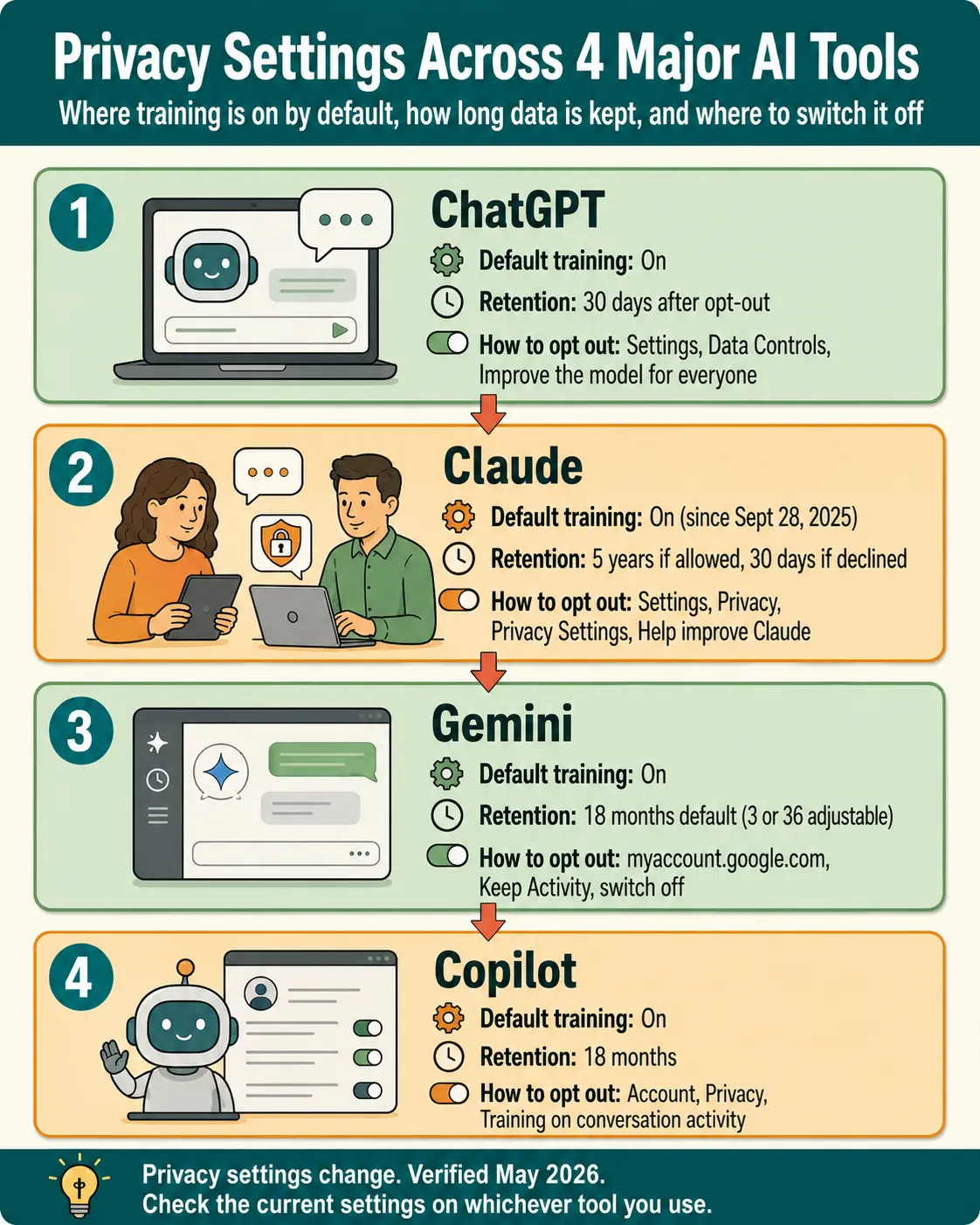
The same questions apply to every AI assistant. Here is the current picture, verified May 2026.
Claude (Anthropic)
Claude used to be the privacy-friendly default for personal users. That ended in late 2025. Every consumer user on Free, Pro, or Max had to choose by September 28, 2025, whether their conversations could be used for training. The default option was on, set by a large accept button on the pop-up. If you allowed training, Anthropic keeps your data for up to five years. If you declined, they keep it for 30 days. The toggle lives at Settings, Privacy, Privacy Settings, “Help improve Claude.” Claude also offers an Incognito mode that excludes individual conversations from training regardless of your global setting. Claude for Work and other commercial plans were not affected and do not use your data for training.
Google Gemini
Gemini’s privacy is tied to your Google account. By default, your conversations are saved (the setting was recently renamed from “Gemini Apps Activity” to “Keep Activity”) and can be used to improve Google services, including by human reviewers. The auto-delete default is 18 months, adjustable to 3 or 36 months. To turn it off, go to myaccount.google.com/data-and-privacy, find Gemini Apps Activity or Keep Activity, and switch it off. Doing so also disables your conversation history, so you will not be able to refer back to old chats. Gemini also added a Temporary Chats feature that disappears after 72 hours, similar to ChatGPT’s Temporary Chat. Google Workspace enterprise accounts have stronger protections.
Microsoft Copilot
Copilot ships in Windows, Edge, and across Microsoft 365 apps, so many people use it without choosing to. For personal accounts, Microsoft stores conversation history for 18 months by default. You can opt out of model training in Account, Privacy, Training on conversation activity, and you can delete history at any time. Uploaded files are stored for up to 30 days and are not used for training. Microsoft 365 Copilot under a work or school account offers stronger protection. Prompts and responses are not used to train foundation models, and data stays inside your organization’s boundary.
The same rule applies to all of them
If you are using a free or personal account on any of these tools, assume your conversations may be reviewed or used for training unless you turn it off. The settings menus move around, but the principle does not change. Find the toggle, switch it off, then use Temporary or Incognito modes for anything sensitive.
Important. Privacy policies change. The details above were verified in May 2026. If you are reading this later, check the current settings on whichever tool you use.
The Tradeoff Worth Knowing
Turning off model training is a privacy choice. The tradeoff is that your conversations no longer feed into making the tool better. You still get the same quality of answers. The only difference is that your specific chats are not part of the training pool.
If you leave training on, you are contributing to the improvement of the tool, which benefits everyone using it. Some people are comfortable with that. Others are not. Neither choice is wrong. What matters is that you make the decision on purpose, not by accident because you did not know the setting existed.
What to Do Right Now
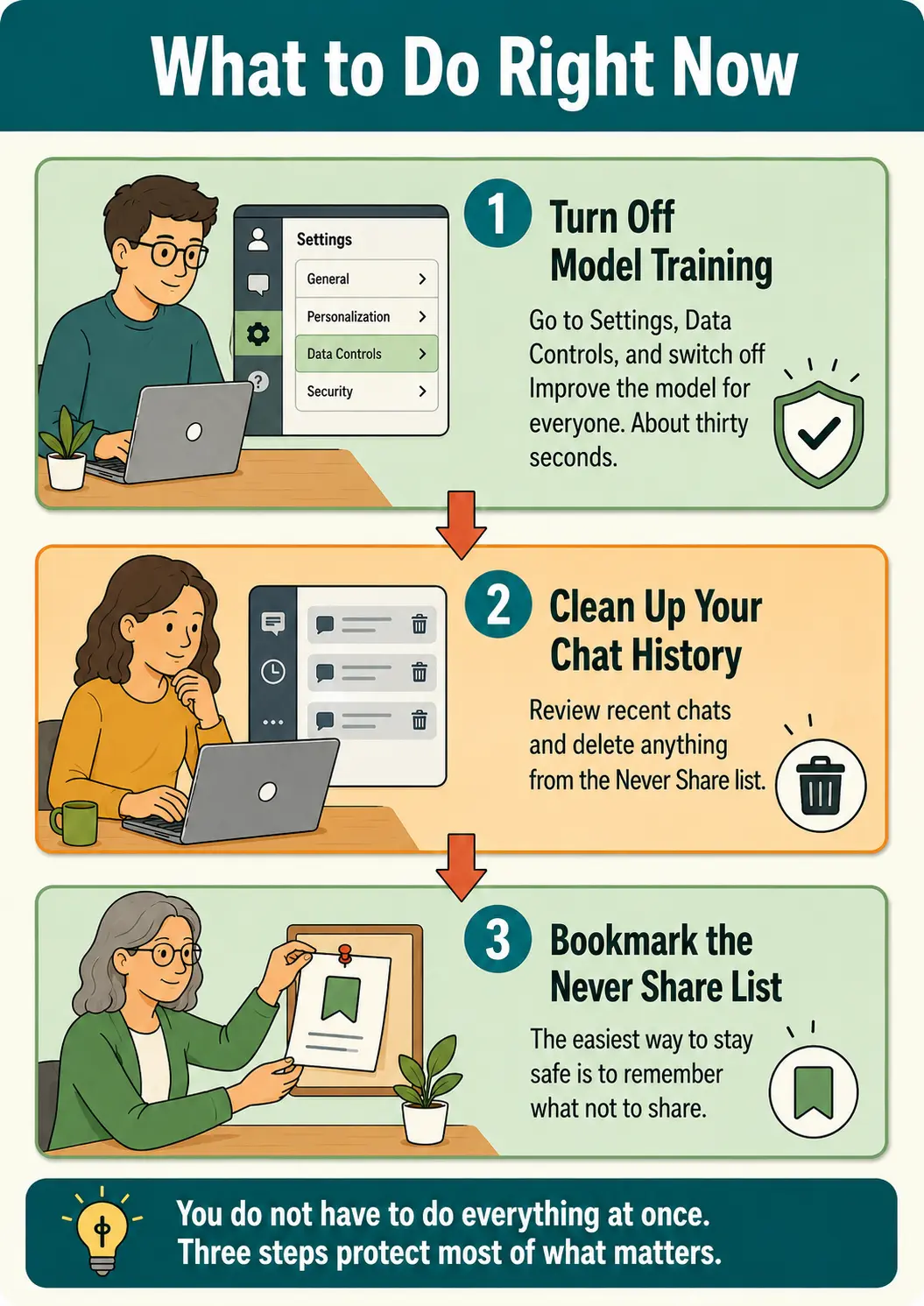
You do not have to do everything at once. Start with these three steps.
First, go into your ChatGPT settings and turn off “Improve the model for everyone.” Thirty seconds.
Second, review your recent chat history. If you have shared anything from the Never Share list, delete those conversations. It does not undo everything, but it still helps.
Third, bookmark the Never Share list. The simplest way to stay safe is to remember what not to share.
ChatGPT is a useful tool. Most builders use it every day without problems. The risks are not about the technology being dangerous. They come from typing material that does not belong in any online platform. If you follow the Never Share list and adjust the two settings above, you can use ChatGPT with confidence. You do not need to fear it. You just need to be thoughtful about it, the same way you are thoughtful about anything else you put online.
A few related posts that pair well with this one. How to Know If an AI Tool Is Actually a Scam takes the protective lens further into the tools and courses being marketed at people building online income. If you want to go deeper on the Free vs Plus decision with a business ROI angle, ChatGPT Free vs Paid is the next step. The AI Tools Comparison covers which tool actually does what. And for the bigger picture on why building skill with AI matters now, start with The AI Gap Is Real.
Sources and further reading
- OpenAI Data Controls FAQ: help.openai.com (search “Data Controls FAQ”)
- OpenAI Privacy Policy: openai.com/policies/row-privacy-policy
- Anthropic Privacy Center: privacy.claude.com
- Anthropic Consumer Terms Update (2025): anthropic.com/news
- Google Gemini Apps Privacy Hub: support.google.com/gemini/answer/13594961
- Microsoft Copilot Privacy Controls: support.microsoft.com (search “Microsoft Copilot privacy controls”)
- Microsoft 365 Copilot Data Privacy: learn.microsoft.com/en-us/microsoft-365/copilot/microsoft-365-copilot-privacy
Information verified as of May 2026. Privacy policies change. Check each platform’s current documentation before relying on the specific details above.